Database Replay Workflow in Oracle 11g Enterprise Manager:
Part-I : Capture using Enterprise Manager :
As you might expect, the capture processing using Enterprise Manager is similar to that of using the PL/SQL APIs. First you must create a directory and a directory object on the production server. We are reusing those created for the PL/SQL API example, which is fine provided you delete the contents of the directory before you start a new capture.
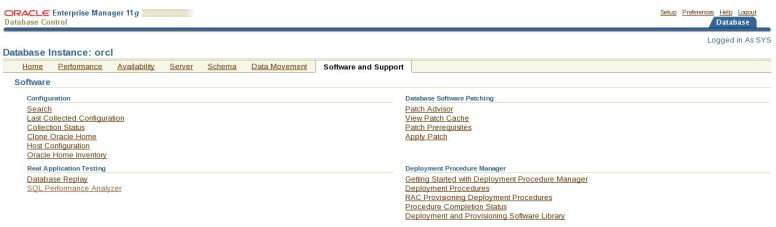
Next, log on to Enterprise Manager on the production server (prod-11g) and navigate to “Software and Support” section, then click on the “Database Replay” link.
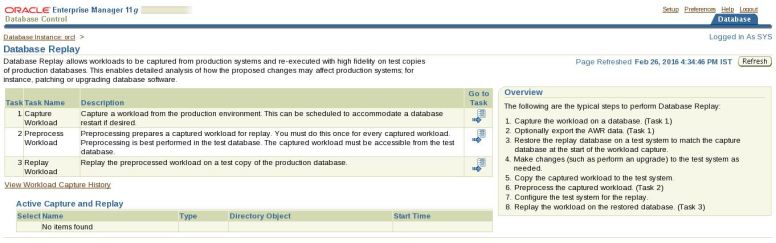
On the “Database Replay” page, click the “Capture Workload” task icon.
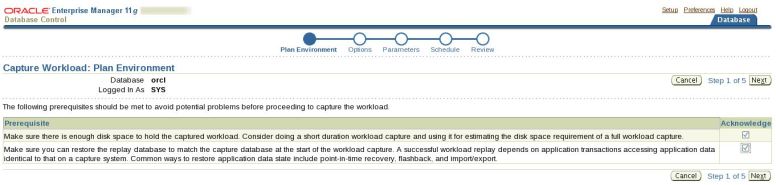
Check the acknowledge check boxes and click the “Next” button.
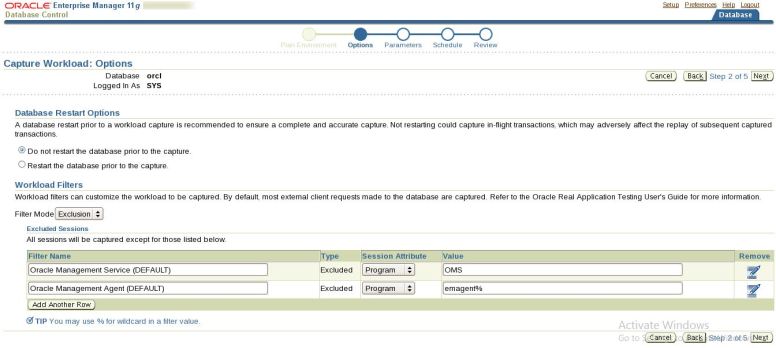
Accept the default options by clicking the “Next” button.
Enter a capture name and select the correct directory object path, then click the “Next” button, then Click the ” Return” button.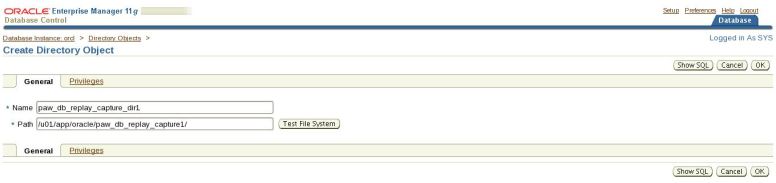

Click the “Test File System” button.
Click the ” Login” button.

Click the ” Return ” button.

Click the ” OK” button.
Select the directory object where you want to create capture details and then Click the “Next” button.
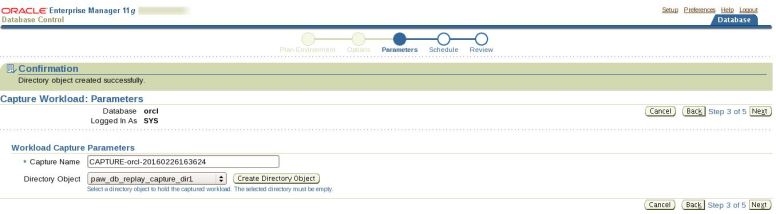
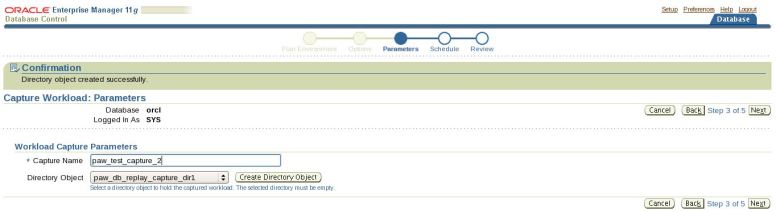
Change the Capture Name as “paw_test_capture_2” and then click the “Next” button.
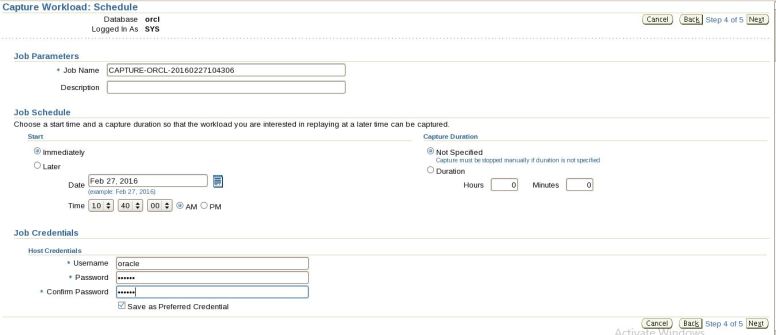
Enter the host credentials on the “Schedule” page, then click the “Next” button.
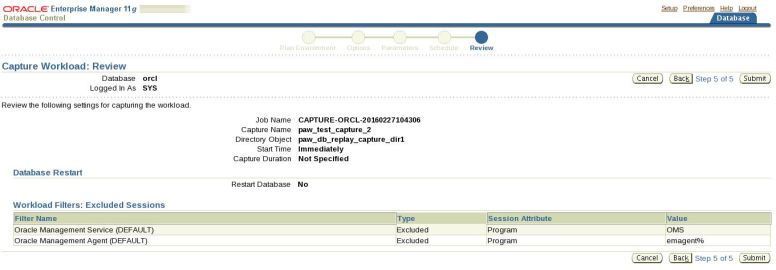
Review the capture information, then click the “Submit” button.
Wait while the capture process is initiated.
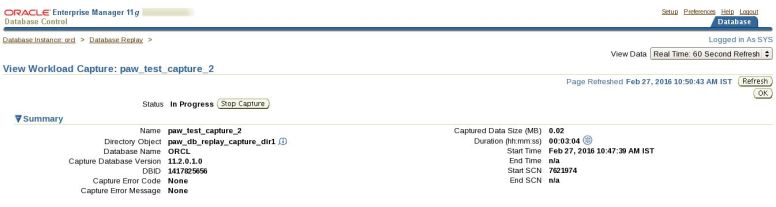
The “Database Replay” screen reappears with a confirmation message informing you that the capture process has been initiated.
Click the refresh button intermittently until the “Active Capture and Replay” section of the screen lists the capture process. Once this is present you can do some processing to be captured. In this example I did a repeat of the work done in the PL/SQL API capture section.
[oracle@localhost ~]$ sqlplus / as sysdba
SQL*Plus: Release 11.2.0.1.0 Production on Sat Feb 27 10:32:32 2016
Copyright (c) 1982, 2009, Oracle. All rights reserved.
Connected to an idle instance.
SQL> startup
ORACLE instance started.
Total System Global Area 839282688 bytes
Fixed Size 2217992 bytes
Variable Size 616564728 bytes
Database Buffers 213909504 bytes
Redo Buffers 6590464 bytes
Database mounted.
Database opened.
SQL> CONN sys/sys@ORCL AS SYSDBA
Connected.
SQL> DROP USER paw_db_replay_user CASCADE;
User dropped.
SQL> CREATE USER paw_db_replay_user IDENTIFIED BY paw_db_replay_user
QUOTA UNLIMITED ON users;
User created.
SQL> GRANT CONNECT,RESOURCE,DBA TO paw_db_replay_user;
Grant succeeded.
SQL> CONN paw_db_replay_user/paw_db_replay_user;
Connected.
SQL> CREATE TABLE paw_db_replay_tab (
id NUMBER,
description VARCHAR2(50),
CONSTRAINT paw_db_replay_tab_pk PRIMARY KEY (id)
);
Table created.
SQL> BEGIN
FOR i IN 1 .. 500000 LOOP
INSERT INTO paw_db_replay_tab (id, description)
VALUES (i, ‘Description for ‘ || i);
END LOOP;
COMMIT;
END;
/
PL/SQL procedure successfully completed.
When it is time to stop the capture process, return to the “Database Replay” screen and click on the “Stop Capture” button in the “Active Capture and Replay” section.
 |
 |
Wait while the capture process stops, then click “Yes” to export the AWR data.

 Click on “Export AWR Data”
 |
 |
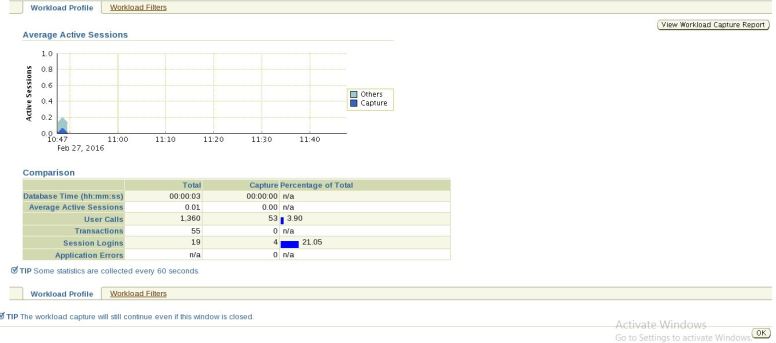
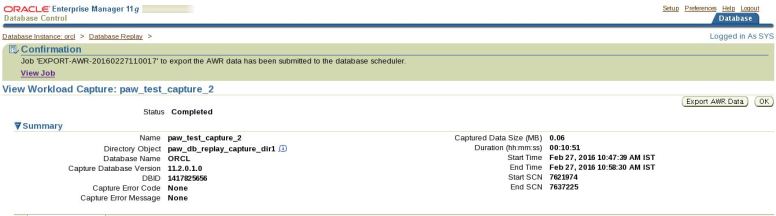
Once the AWR export job has been submitted, you are directed to the “View Workload Capture” screen, which gives a summary of the capture process.
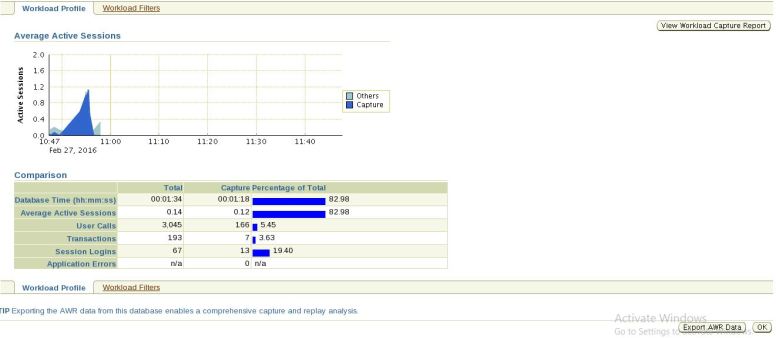
Clicking on “View Workload Capture Report” button will display you the report.
The capture process is now complete.
[oracle@localhost ~]$ cd /u01/app/oracle/paw_db_replay_capture1
[oracle@localhost paw_db_replay_capture1]$ ll
total 8
drwxr—– 2 oracle oinstall 4096 Feb 27 11:05 cap
drwxr—– 3 oracle oinstall 4096 Feb 27 10:47 capfiles
[oracle@localhost paw_db_replay_capture1]$ cd cap
[oracle@localhost cap]$ ll
total 6716
-rw-r—– 1 oracle oinstall 6778880 Feb 27 11:05 wcr_ca.dmp
-rw-r–r– 1 oracle oinstall 18640 Feb 27 11:05 wcr_ca.log
-rw-r—– 1 oracle oinstall 12288 Feb 27 11:05 wcr_cap_uc_graph.extb
-rw-r–r– 1 oracle oinstall 30178 Feb 27 10:59 wcr_cr.html
-rw-r–r– 1 oracle oinstall 11394 Feb 27 10:59 wcr_cr.text
-rw-r–r– 1 oracle oinstall 324 Feb 27 10:59 wcr_fcapture.wmd
-rw-r—– 1 oracle oinstall 212 Feb 27 10:47 wcr_scapture.wmd
[oracle@localhost cap]$ cd ..
[oracle@localhost paw_db_replay_capture1]$ cd capfiles/
[oracle@localhost capfiles]$ ll
total 4
drwxr—– 12 oracle oinstall 4096 Feb 27 10:47 inst1
[oracle@localhost capfiles]$ cd inst1/
[oracle@localhost inst1]$ ll
total 40
drwxr-xr-x 2 oracle oinstall 4096 Feb 27 10:58 aa
drwxr-xr-x 2 oracle oinstall 4096 Feb 27 10:47 ab
drwxr-xr-x 2 oracle oinstall 4096 Feb 27 10:47 ac
drwxr-xr-x 2 oracle oinstall 4096 Feb 27 10:47 ad
drwxr-xr-x 2 oracle oinstall 4096 Feb 27 10:47 ae
drwxr-xr-x 2 oracle oinstall 4096 Feb 27 10:47 af
drwxr-xr-x 2 oracle oinstall 4096 Feb 27 10:47 ag
drwxr-xr-x 2 oracle oinstall 4096 Feb 27 10:47 ah
drwxr-xr-x 2 oracle oinstall 4096 Feb 27 10:47 ai
drwxr-xr-x 2 oracle oinstall 4096 Feb 27 10:47 aj
[oracle@localhost inst1]$ cd aa
[oracle@localhost aa]$ ll
total 116
-rw-r–r– 1 oracle oinstall 980 Feb 27 10:47 wcr_d2cbkh0000001.rec
-rw-r—– 1 oracle oinstall 1319 Feb 27 10:47 wcr_d2cbmh0000002.rec
-rw-r–r– 1 oracle oinstall 1213 Feb 27 10:47 wcr_d2cbmh0000003.rec
-rw-r–r– 1 oracle oinstall 1200 Feb 27 10:47 wcr_d2cbnh0000004.rec
-rw-r–r– 1 oracle oinstall 1198 Feb 27 10:47 wcr_d2cbnh0000005.rec
-rw-r–r– 1 oracle oinstall 1197 Feb 27 10:47 wcr_d2cbnh0000006.rec
-rw-r–r– 1 oracle oinstall 986 Feb 27 10:47 wcr_d2cbnh0000007.rec
-rw-r–r– 1 oracle oinstall 979 Feb 27 10:47 wcr_d2cbsh0000008.rec
-rw-r–r– 1 oracle oinstall 1201 Feb 27 10:47 wcr_d2cbvh0000009.rec
-rw-r–r– 1 oracle oinstall 1200 Feb 27 10:48 wcr_d2ccch000000h.rec
-rw-r–r– 1 oracle oinstall 3990 Feb 27 10:48 wcr_d2cd8h000000j.rec
-rw-r–r– 1 oracle oinstall 1213 Feb 27 10:48 wcr_d2cddh000000n.rec
-rw-r–r– 1 oracle oinstall 1005 Feb 27 10:48 wcr_d2cdph000000p.rec
-rw-r–r– 1 oracle oinstall 2969 Feb 27 10:49 wcr_d2cfzh000000q.rec
-rw-r–r– 1 oracle oinstall 2786 Feb 27 10:49 wcr_d2cfzh000000r.rec
-rw-r–r– 1 oracle oinstall 1770 Feb 27 10:49 wcr_d2cgch000000u.rec
-rw-r–r– 1 oracle oinstall 3207 Feb 27 10:51 wcr_d2ck4h000000x.rec
-rw-r–r– 1 oracle oinstall 1311 Feb 27 10:53 wcr_d2cqrh0000019.rec
-rw-r–r– 1 oracle oinstall 3050 Feb 27 10:54 wcr_d2cqrh000001a.rec
-rw-r–r– 1 oracle oinstall 0 Feb 27 10:54 wcr_d2csah000001b.rec
-rw-r–r– 1 oracle oinstall 2969 Feb 27 10:54 wcr_d2csbh000001c.rec
-rw-r–r– 1 oracle oinstall 2786 Feb 27 10:54 wcr_d2csbh000001d.rec
-rw-r–r– 1 oracle oinstall 1200 Feb 27 10:54 wcr_d2csgh000001f.rec
-rw-r–r– 1 oracle oinstall 1201 Feb 27 10:54 wcr_d2csgh000001g.rec
-rw-r–r– 1 oracle oinstall 1200 Feb 27 10:54 wcr_d2csgh000001h.rec
-rw-r–r– 1 oracle oinstall 1764 Feb 27 10:54 wcr_d2cssh000001m.rec
-rw-r–r– 1 oracle oinstall 2604 Feb 27 10:55 wcr_d2cufh000001q.rec
-rw-r–r– 1 oracle oinstall 3120 Feb 27 10:55 wcr_d2cufh000001r.rec
-rw-r–r– 1 oracle oinstall 981 Feb 27 10:58 wcr_d2cz4h0000020.rec
-rw-r–r– 1 oracle oinstall 1161 Feb 27 10:58 wcr_d2czxh0000021.rec
[oracle@localhost aa]$ cd ..
[oracle@localhost inst1]$ cd ab
[oracle@localhost ab]$ ll
total 0
[oracle@localhost ab]$ cd ..
[oracle@localhost inst1]$ cd ac
[oracle@localhost ac]$ ll
total 0
[oracle@localhost ac]$
[oracle@localhost ~]$ . oraenv
ORACLE_SID = [ORCL] ? catdb
The Oracle base for ORACLE_HOME=/u01/app/oracle/product/11.2.0/db_1 is /u01/app/oracle
[oracle@localhost ~]$ sqlplus / as sysdba
SQL*Plus: Release 11.2.0.1.0 Production on Sat Feb 27 11:23:34 2016
Copyright (c) 1982, 2009, Oracle. All rights reserved.
Connected to an idle instance.
SQL> startup
ORACLE instance started.
Total System Global Area 630501376 bytes
Fixed Size 2215984 bytes
Variable Size 385880016 bytes
Database Buffers 234881024 bytes
Redo Buffers 7524352 bytes
Database mounted.
Database opened.
SQL> DROP USER paw_db_replay_user CASCADE;
User dropped.
Thank you for reading … This is Airy … Enjoy 🙂